Important: understanding how email attribution and de-duplication works
The email archiver de-duplicates email. This means that if multiple users are involved in the same email exchange, a single copy of each email is archived. The archiver keeps track of who is involved in each email (sender, recipients, cc, bcc) in order to control who can access that specific email.
Example: If user A wrote to user B, a single copy of the email is stored. Both user A and user B can see this email. When you delete this email it disappears for both users.
There are situations where this de-duplication does not happen and multiple copies of the same email are archived. For example, when importing a PST you can choose whether to attribute the email to a single user or to all users involved in the email exchanges. In the first case only the user you chose can see the email, in the second case all users involved can see the email. Whether to choose one or the other is a matter of privacy. You can choose.
When email is imported from a connector, the email is attributed always to a single user: the owner of the mailbox the email has been imported from.
When email is imported from journaling, the email is attributed to all users involved in the conversation.
When email is imported from PST or from other archives, you can choose.
This is important in order to understand what happens if you delete an email. It might be the only copy of that email and deleting it will make it disappear for all users.
Deleting email from the email archiver
Deleting email is therefore a
very delicate operation on a system designed to archive and preserve email.
In order to provide protection against
accidental deletion and to comply with international regulatory
information integrity requirements, deleting high volumes of email from the Libraesva Email Archiver can be performed only through
email retention rules. Small volumes can be deleted from the UI. This protects against
errors and against
sabotage.
Remember: the email archiver is designed to preserve email. Deleting multiple emails in batch is a
dangerous operation and it is therefore
intentionally not straightforward to batch-delete email in the archiver.
Also, the email archiver uses a soft-delete followed by ha hard-delete scheme. Deleting email means flagging the email as deleted, without actually removing the email from the archive. At a later stage the email is physically deleted.
Starting from the release 21.8, when you configure a retention rule to delete a high volume of email, the soft-delete happens not earlier than one week after the rule has been configured. This is an additional protection against data loss. The administrator and the privacy officer are notified two times (seven and four days in advance) that the email will be deleted.
The soft-delete can be forced if, in special circumstances, you don't want to take advantage of this protection.
The hard-delete happens at a later stage based on tenant cleanup policies. It can also be forced to happen immediately should it be needed from settings > tenant and by pressing the icon:

We have put great care in protecting your data through processes that are designed to avoid accidental or malicious data loss. With all this in mind, be careful when you approach the deletion of email from the archiver.
Case 1: you want to delete a single email (real-time)
To delete a single email follow the steps below:
- Go to Search
- Enter a search criteria
- Open the email
- Click on Delete
Case 2: you want to delete a limited subset of email (real-time)
To delete some email follow the steps below:
- Go to Search
- Enter a search criteria
- Verify that the resulting subset is correct
- Click on "select all" or manually select the checkboxes related to the email to be deleted
- Click on Delete
Case 3: you want to delete a subset of the archived email (batch)
To delete some email from the archiver follow the steps below.
- As an administrator, go to Search.
- Enter the search criteria to select the subset of email you want to delete.
- Click on Search and verify that the emails returned by this search are the ones you want to delete.
- Save this search as a Global search with a name like "Delete some mails":
- In Archiver > Retention Rules create a retention rule based on this search with an expiry of 0 days (unless this is a permanent retention rule)
- Save the retention rule
- Retention rules are executed nightly, so you can just wait until tomorrow. If you want to force the deletion immediately enter in the console of the hypervisor and choose the option "Force retention rules to be applied now" (if your appliance is in Libraesva cloud, contact support).
- Remove the retention rule after it has been executed unless it is a permanent retention rule
Case 4: you want to delete all email related to a single user (batch)
To delete all email for a single user follow the steps below.
Delete all mail email belonging ONLY to user
- As an administrator, go to Search.
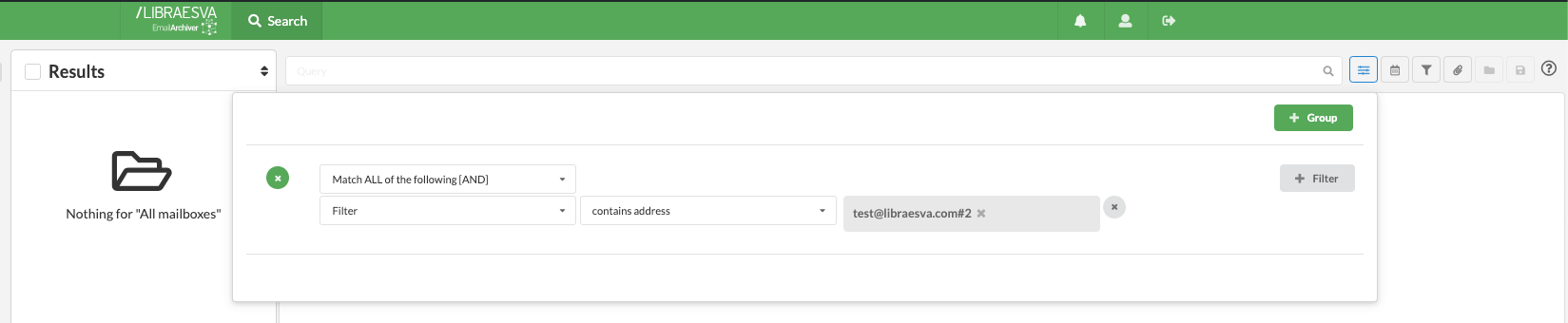
- Enter a query of type "filter" "contains address" and enter the address from autocomplete suggested users
- NOTE: this will select emails belonging ONLY to this user.
- Click on Search
- Save this empty search as a Global search with a name like "Delete user pparker@365demonstration.com":
- In Archiver > Retention Rules create a retention rule based on this search with an expiry of 0 days:
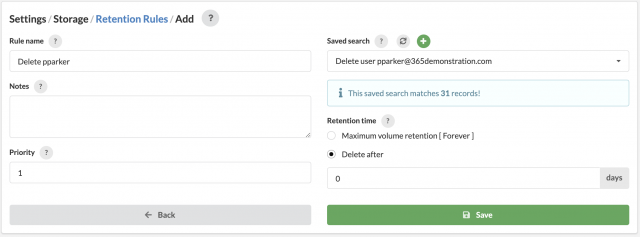
- Save the retention rule
- Retention rules are executed nightly, so you can just wait until tomorrow. If you want to force the deletion immediately enter in the console of the hypervisor and choose the option "Force retention rules to be applied now" (if your appliance is in Libraesva cloud, contact support).
- Remove the retention rule after it has been executed
Delete all "journaling" mail user in FROM
- As an administrator, go to Search.
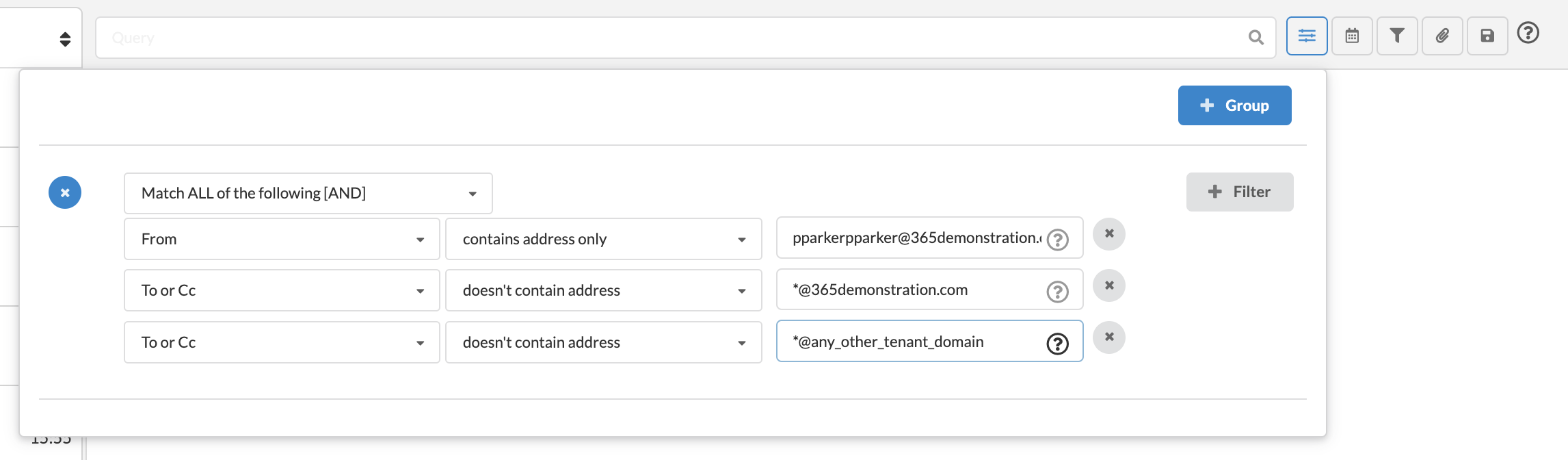
- Enter a query with multiple conditions:
- type "From" "contains address only" and enter the mail address
- type "To or Cc" "doesn't contain address" and enter "*@userdomain.tld"
- this condition will skip all mail sent internally to other users.
- Add as many conditions as (step 2) in order to avoid to delete mail belonging other tenant domains alias.
- Click on Search
- Save this empty search as a Global search with a name like "Delete from journaling user pparker@365demonstration.com":
- In Archiver > Retention Rules create a retention rule based on this search with an expiry of 0 days:
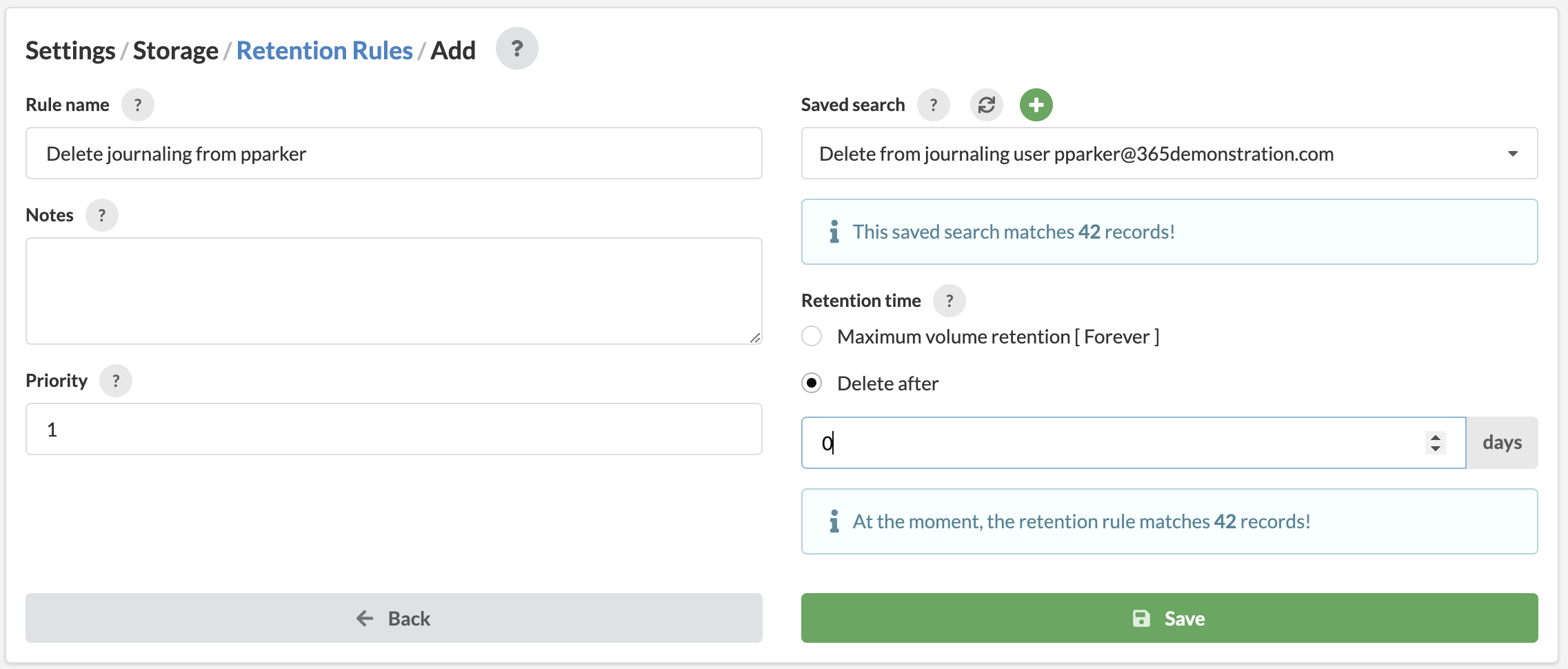
- Save the retention rule
- Retention rules are executed nightly, so you can just wait until tomorrow. If you want to force the deletion immediately enter in the console of the hypervisor and choose the option "Force retention rules to be applied now" (if your appliance is in Libraesva cloud, contact support).
- Remove the retention rule after it has been executed
Delete all "journaling" mail with user in TO or Cc
[fruitful_alert type="alert-warning"]
Note: This case can't be solved by configuring a dedicated saved search, but each mail contains user mail address into To or Cc must be analyzed by admin user before deletion approval, to identify mail to analyze:[/fruitful_alert]
- As an administrator, go to Advanced Search.
- Enter a query of type "To or Cc" "contains address" and enter the mail address
- Click on Search
- Each mail can be analyzed before deletion approval
Case 5: you want to delete all email for a tenant (batch)
Option 1: Delete the tenant (if you don't need it anymore) from Settings > Tenants.
Option 2: To maintain all tenant configurations (including volumes) while deleting all email follow the steps below.
- As an administrator, go to Search.
- Select the correct Tenant from the top left menù.
- Click on "All Mailboxes".
- Save this "empty" search as a Global search with a name like "All email", ensure it matches all messages of the selected Tenant:

- In Archiver > Retention Rules create a retention rule based on this search with an expiry of 0 days:
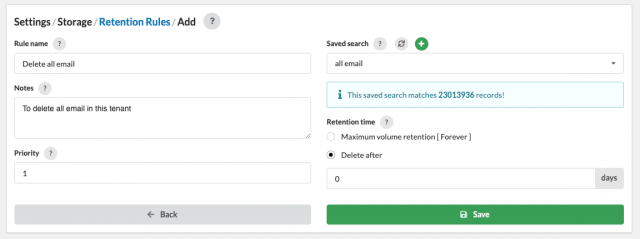
- Save the retention rule
- Retention rules are executed nightly, so you can just wait until tomorrow. If you want to force the deletion immediately enter in the console of the hypervisor and choose the option "Force retention rules to be applied now" (if your appliance is in Libraesva cloud, contact support).
- Remove the retention rule after it has been executed
Storage license usage
In case of storage based license, in order to free up used license space, you need to perform purge to physically delete logically deleted emails.
To run purge please refer to
this page.